Chrome extension
FastOCR for Chrome: copy text from your screen
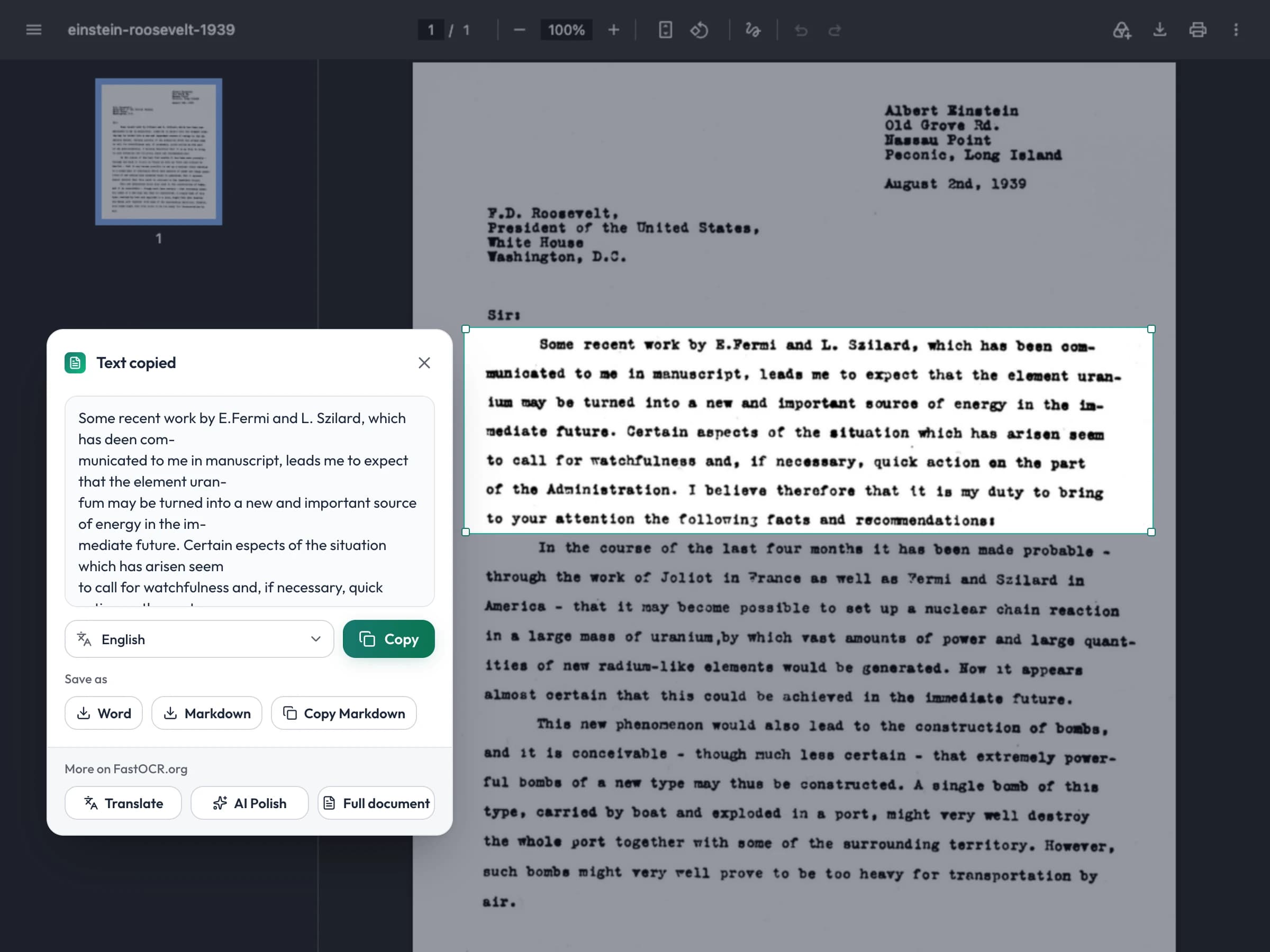
FastOCR for Chrome is a free extension that copies text from anything on your screen. Press a shortcut, drag over the text, and it is read on your computer and copied. Nothing is uploaded.
Add to ChromeFree · Version 1.0.0 · October 16, 2026 · Chrome 116 or later · No account
How it works
One shortcut, one drag
- Step 1
Press the shortcut
Alt+Shift+O, or click the FastOCR button in the toolbar. The page freezes so nothing moves while you choose.
- Step 2
Drag over the text
Any part of the screen: an image, a video frame, a chart, a PDF, a page that blocks copying.
- Step 3
Paste it anywhere
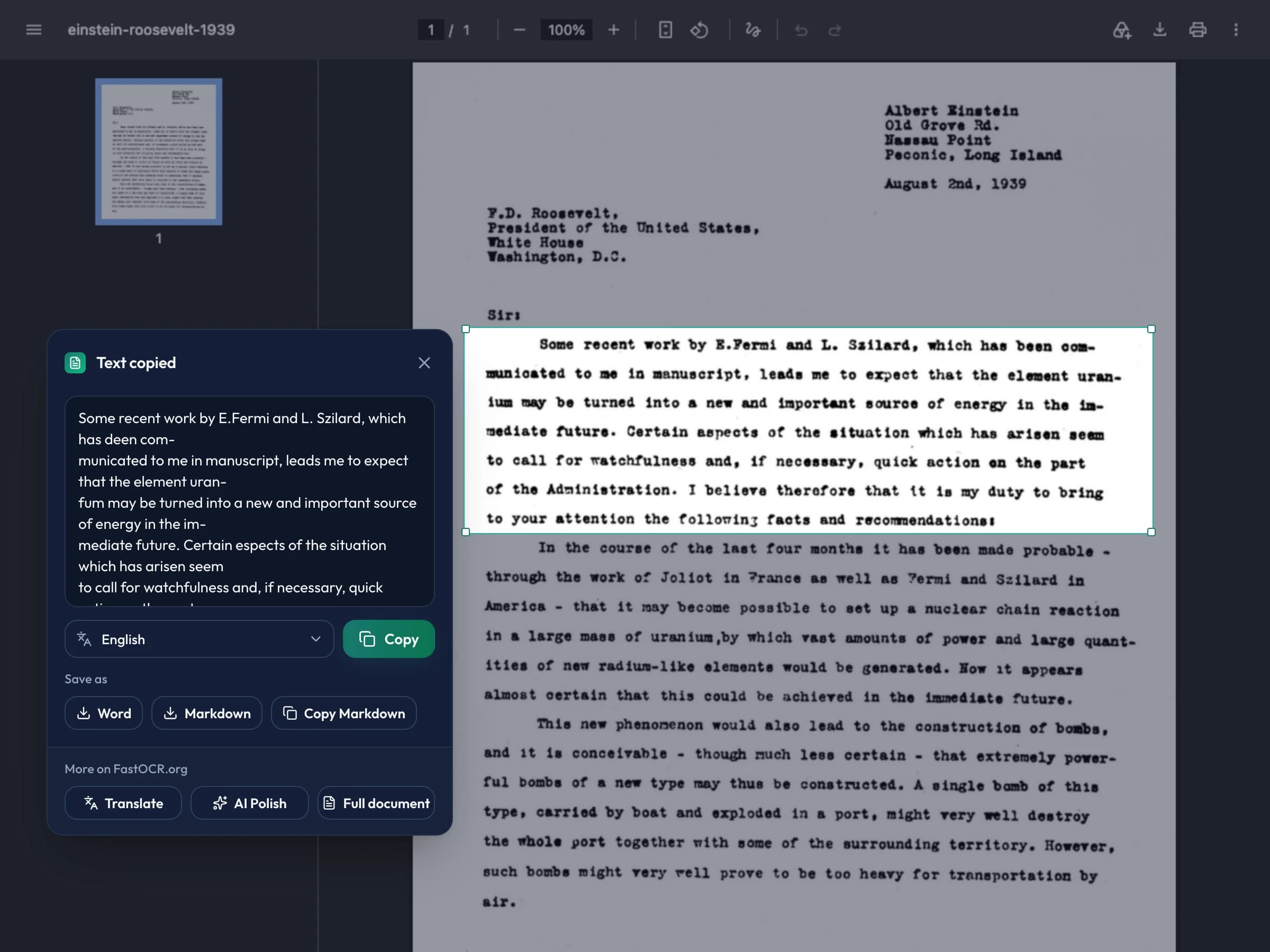
The text is read on your computer and copied. Edit it in the card first if you like.
Privacy
Text is read on your computer
The extension reads text with Tesseract, an open-source OCR engine, inside Chrome. What you select is not uploaded, and the extension has no analytics.
It goes online in two cases: to download a language's data once from jsDelivr, a public open-source CDN, and when you click a button that sends a file to fastocr.org. The web app then waits for you to click Start before it uploads anything. See the privacy policy.
- Active tab
- Takes the screenshot you select from, and reads a PDF tab when you ask it to. Only the tab you are on, only when you use the extension.
- Scripting
- Shows the selection and the result card on the page.
- Offscreen document
- Runs the text recognition in the background, on your computer.
- Storage
- Remembers your language.
- Alarms
- Clears a file waiting for fastocr.org after 15 minutes.
PDFs
Turn a PDF tab into Word, Excel or a searchable PDF
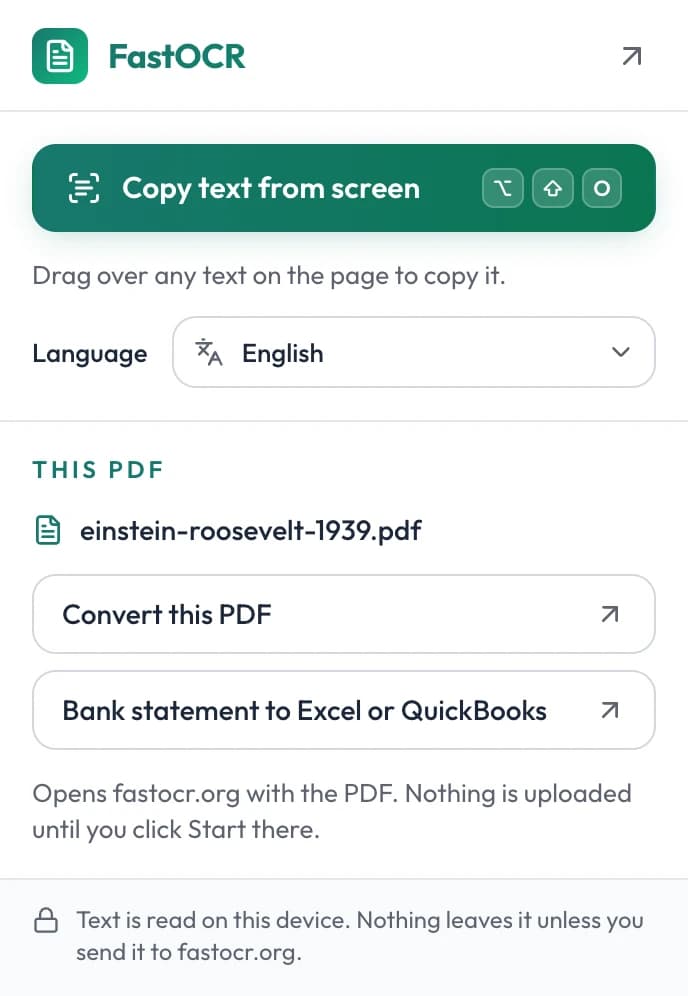
On a PDF, the toolbar button offers the jobs a screen grab can't do. The PDF opens on fastocr.org, ready in the uploader.
- Convert this PDF for text, Word or a searchable PDF of the whole document.
- Bank statement to Excel or QuickBooks for transactions you can import. How it works.
- Bank sites often refuse a second download. Then the extension asks you to save the PDF and drop it on the page it opens.
Languages
English built in, 25 more on demand
| Language | Code | Download |
|---|---|---|
| English | eng | Built in |
| Arabic | ara | 1.7 MB |
| Chinese, Simplified | chi_sim | 1.7 MB |
| Chinese, Traditional | chi_tra | 1.7 MB |
| Czech | ces | 2.2 MB |
| Danish | dan | 1.8 MB |
| Dutch | nld | 3.0 MB |
| French | fra | 0.7 MB |
| German | deu | 1.3 MB |
| Indonesian | ind | 1.2 MB |
| Italian | ita | 1.7 MB |
| Japanese | jpn | 2.0 MB |
| Korean | kor | 1.6 MB |
| Malay | msa | 1.2 MB |
| Norwegian | nor | 2.5 MB |
| Persian | fas | 0.4 MB |
| Polish | pol | 2.6 MB |
| Portuguese | por | 1.4 MB |
| Romanian | ron | 1.7 MB |
| Russian | rus | 2.7 MB |
| Spanish | spa | 2.1 MB |
| Swedish | swe | 2.5 MB |
| Thai | tha | 0.9 MB |
| Turkish | tur | 2.1 MB |
| Ukrainian | ukr | 2.1 MB |
| Vietnamese | vie | 1.4 MB |
Read on fastocr.org instead
The extension doesn't read these on your computer. Pick one in the extension and your selection opens on fastocr.org: Hebrew, Hindi, Urdu.
Handwriting, old print and hard scans read better on the web app too. When a read looks weak, the result card says so and offers it. Language data downloads once from jsDelivr and stays in Chrome.
FAQ
FastOCR for Chrome questions
Rather not install anything? Use screenshot to text or image to text on the web.
Is the FastOCR Chrome extension free?
Yes. The extension is free, needs no account and has no usage limit. It reads text on your computer. The FastOCR web app is separate, with its own free allowance and paid plans for bigger jobs.
How do I install it?
Click Add to Chrome on this page, then Add extension in the box Chrome shows. Chrome shows no permission warning for it. To keep the FastOCR button in view, open the puzzle-piece menu in the toolbar and pin FastOCR.
How do I change the keyboard shortcut?
The shortcut is Alt+Shift+O, or Option+Shift+O on a Mac. To change it, open chrome://extensions/shortcuts and set a new one for FastOCR. Without a shortcut, click the FastOCR button and choose Copy text from screen.
Which languages can it read?
English is built in and works offline. Arabic, Chinese, Simplified, Chinese, Traditional, Czech, Danish, Dutch, French, German, Indonesian, Italian, Japanese, Korean, Malay, Norwegian, Persian, Polish, Portuguese, Romanian, Russian, Spanish, Swedish, Thai, Turkish, Ukrainian and Vietnamese download once, 0.4 to 3 MB each. Hebrew, Hindi and Urdu are read on fastocr.org instead: pick one and your selection opens there. Handwriting and hard scans also read better on the web app.
Does the extension upload what I select?
No. The text is read on your computer. A file goes to fastocr.org only when you click a button that sends it there, and the web app uploads it only when you click Start. The first time you use a language other than English, its data downloads from jsDelivr, a public open-source CDN. The extension has no analytics.
What happens on a PDF tab?
The toolbar button shows Convert this PDF and Bank statement to Excel or QuickBooks. Either one opens fastocr.org with the PDF ready in the uploader. If Chrome cannot hand the PDF over, save it and drop it on the page the extension opens.
Is it fast on an older computer?
Text is read on your computer, so speed depends on it. A screen area takes well under a second on a recent laptop and can take several seconds on an older one or a low-cost Chromebook. Cancel stops a slow read. For whole documents, use the web app, which reads them on our servers.
FastOCR
Copy the text you can't select
Free, no account, and nothing you select leaves your computer.