Why bank statement PDFs come out messy in Excel
A bank statement PDF is a table designed to be printed, not data. It records where each word sits on the page, not which row it belongs to. General PDF-to-Excel tools guess the rows from those positions, so wrapped descriptions, page headers, summary boxes and odd signs end up in the wrong cells.
By the FastOCR team · Published · 9 min read
Who this is for
- Bookkeepers, small business owners and anyone who converted a statement and got a jumbled sheet.
- You need the statement PDF and a spreadsheet app. No accounting knowledge is assumed.
On this page
- Why does a statement that looks tidy convert badly?
- Descriptions that wrap onto a second line
- One amount column, or two?
- The running balance sits on another line
- Summary boxes read as transactions
- Page headers repeated on every page
- A date inside the description
- Numbers split, dates without a year
- What does a statement-specific converter do differently?
- How do I check any conversion, from any tool?
- When is converting the wrong answer?
- Frequently asked questions
The statement PDF
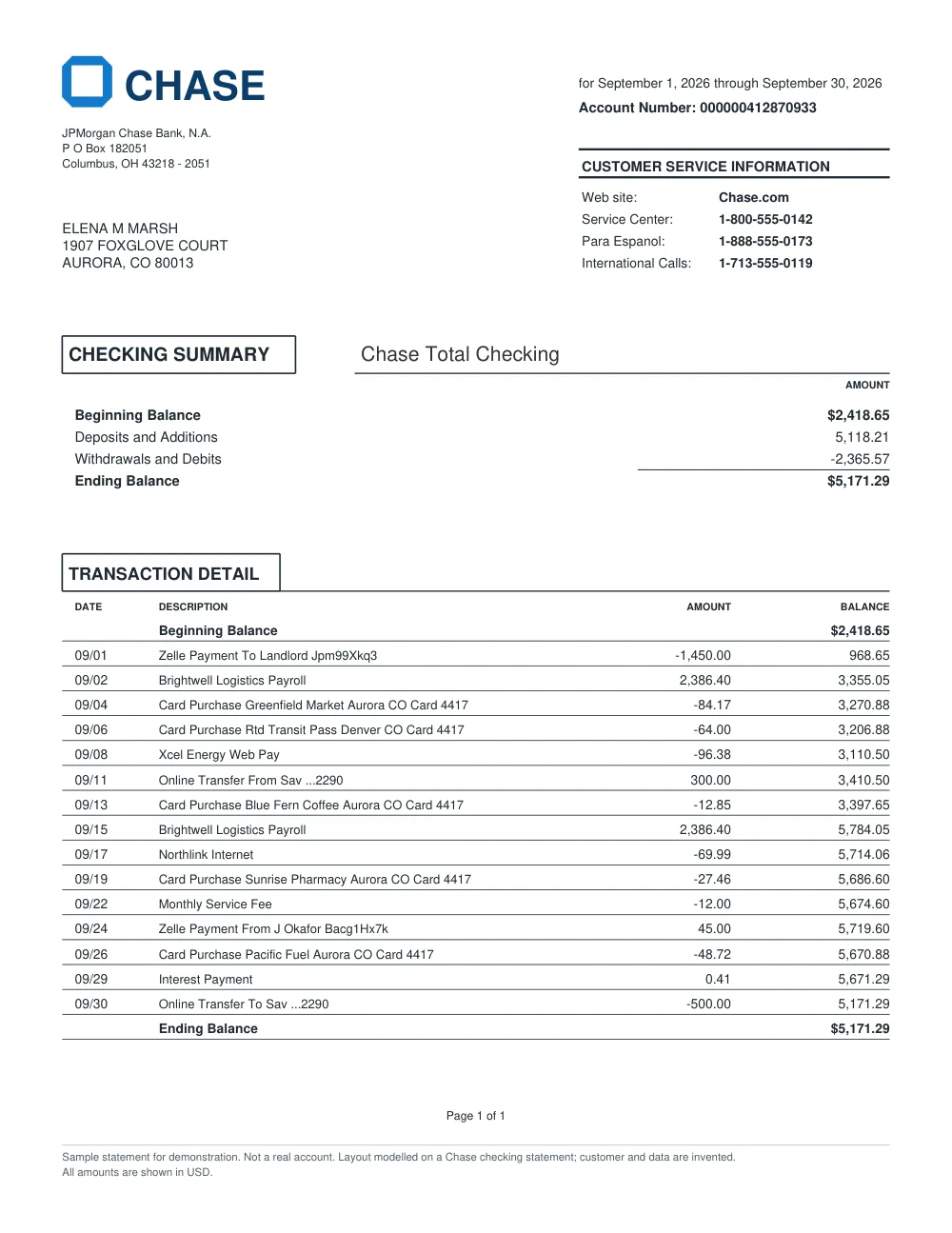
What a generic converter can give you
| A | B | C | D | |
|---|---|---|---|---|
| 1 | CHECKING SUMMARYSection heading copied in | Chase Total Checking | ||
| 2 | Beginning BalanceSummary box, not a transaction | $2,418.65 | ||
| 3 | Deposits and AdditionsSummary box, not a transaction | 5,118.21 | ||
| 4 | Withdrawals and DebitsSummary box, not a transaction | -2,365.57 | ||
| 5 | 09/01 | Zelle Payment To Landlord Jpm99Xkq3 | -1,450.00 | 968.65 |
| 6 | 09/02 | Brightwell Logistics Payroll | 2,386.40 | 3,355.05 |
| 7 | 09/04 | Card Purchase Greenfield MarketDescription split, amount pushed right | Aurora CO Card 4417 | -84.17 |
| 8 | 09/06 | Card Purchase Rtd Transit Pass Denver CO Card 4417Minus sign lost | 64.00 | 3,206.88 |
| 9 | Page 1 of 1Page footer copied in |
Why does a statement that looks tidy convert badly?
Because the tidiness is only visual. A PDF is a set of instructions for drawing letters at positions on a page. It does not say “this is row 14, column Debit”. Your eye sees a table because the words line up; a converter has to rebuild that table from coordinates, and statements are full of layout habits that break a simple guess.
Generic PDF-to-Excel tools treat every page the same way: find lines of text, split them into cells wherever there is a gap. That works for a clean grid.
A statement is not a clean grid. It wraps long descriptions, prints a running balance, repeats its header on every page and puts summary boxes above the transactions. Each of those becomes a broken row.
The seven causes below cover almost every messy conversion we have seen. The example rows are made up; they copy common layouts, not any real customer’s statement.
Descriptions that wrap onto a second line
Long merchant names and transfer references wrap. To the converter, the second line looks like a new row with no date and no amount.
| Date | Description | Debit | Balance |
|---|---|---|---|
| 03/04 | CARD PAYMENT TO NORTHSIDE | 42.10 | 1,207.90 |
| HARDWARE LTD REF 55821 |
Fix: join the orphan line onto the row above it. A row with no date and no amount is almost always the end of the previous description.
One amount column, or two?
Some banks print separate Debit and Credit columns. Others print one Amount column with a minus sign, a trailing sign (“30.00+”), a bracket (“(30.00)”) or the letters DR and CR. A converter that keeps only the digits loses the direction, so money in and money out look the same.
| Printed as | Means |
|---|---|
| -30.00 | Money out |
| 30.00- | Money out |
| (30.00) | Money out |
| 30.00 CR | Money in |
The running balance sits on another line
Many statements print the balance on the last line of a wrapped transaction, or only once per day. The converter puts that balance against the wrong row, and every balance after it looks shifted by one.
Fix: trust the order of the rows, not the cell the balance landed in. Each balance should equal the previous balance plus or minus the row’s amount.
Summary boxes read as transactions
The first page usually has a box with “Opening balance”, “Total money in”, “Total money out” and “Closing balance”. Those are totals, not transactions. Pulled into the sheet, they double-count everything.
| Date | Description | Amount |
|---|---|---|
| Total payments out | -3,107.77 | |
| Total Balance | 1,250.00 | |
| 01/04 | DIRECT DEBIT CITY WATER | -38.20 |
Page headers repeated on every page
The bank’s name, your account number, “Page 2 of 6” and the column headings print again at the top of each page. A converter copies them into the middle of your data, sometimes with a date that is the statement date, not a transaction date.
A date inside the description
Card payments often print the purchase date inside the description, while the row’s own date is the day it cleared. Some converters read the wrong one as the transaction date, so rows move days or even months.
| Date | Description | Amount |
|---|---|---|
| 06/27 | DEBIT CARD 4417 PURCHASE 06-25-26 GREEN GROCER | -18.45 |
Numbers split, dates without a year
Narrow columns split a long figure over two lines (“200,000,000.0” and “0” underneath), so it reads as two numbers. On a scanned page every digit has to be read with OCR first, which adds its own errors, so check whether your PDF is scanned or digital. And most statements print dates as “03/04” with no year, which is either 3 April or 4 March depending on the bank’s country. Excel guesses, and the guess can be wrong for half the rows.
Fix: find one date with a day above 12 (such as 25/03): it proves the order for the whole statement. Take the year from the statement period printed at the top.
What does a statement-specific converter do differently?
It reads the page as a statement, not as a generic table. A dated line with an amount starts a new transaction, and the lines under it without a date are joined to its description. Summary boxes and page headers are recognised and kept out of the rows.
The direction of each amount comes from its column or its sign. Then the arithmetic is checked: each running balance against the one before it, and the opening balance plus money in minus money out against the closing balance.
FastOCR’s bank statement converter works this way and shows whether the balances add up as Reconciled, Not reconciled or Could not be checked. It does not check dates or descriptions, so skim those against the PDF. For scanned or photographed statements, read what to expect from OCR on bank statements.
How do I check any conversion, from any tool?
Add up the money in and money out in your sheet and test one formula: opening balance + money in − money out = closing balance. If it holds, no row is missing or flipped. If it does not, the size of the gap usually tells you what went wrong. The 2-minute balance check walks through it with a formula you can paste.
When is converting the wrong answer?
If your bank’s website offers a CSV, OFX or QuickBooks download for the dates you need, use that instead. It is the bank’s own data and needs no checking for layout. Converting is for closed accounts, old statements beyond the download window, and banks that only give you a PDF. If the rows are headed for QuickBooks, our guide to importing a statement PDF into QuickBooks Online covers the upload.
Frequently asked questions
Why does my bank statement PDF look fine but turn into a mess in Excel?
A PDF stores where each word is printed, not which row and column it belongs to. A general converter guesses the table from the positions, so wrapped descriptions, page headers and summary boxes land in the wrong cells.
Can I fix a messy conversion by hand?
For a short statement, yes. Join wrapped descriptions, delete repeated headers and summary lines, and put every amount in the right column. Then check that the opening balance plus money in minus money out equals the closing balance.
Is a scanned statement harder to convert than a downloaded one?
Yes. A downloaded PDF has a text layer, so every figure can be read exactly. A scan or phone photo has to be read with OCR first, and a misread digit is possible, so check the balances on every scanned page.
Should I ask my bank for a CSV instead?
If your online banking offers a CSV, OFX or QuickBooks download for the dates you need, use it. It is the bank’s own data and needs no conversion. Converting a PDF is for when the PDF is all you have.
Convert a statement and see if it balances
Upload a PDF bank statement and get Excel, CSV and QuickBooks files, with the balance check on the page. Your first 50 statement pages are free after sign-in.
Related guides
- Does your converted statement balance?The one formula that catches missing rows and flipped signs.
- Is my PDF scanned or digital?The 10-second test that decides how a PDF can be read.
- Import a bank statement PDF into QuickBooks OnlineFrom PDF to .qbo or CSV, then Upload from file.
- Bank statement converterPDF statements to Excel, CSV and QuickBooks files.
Sources
How we wrote this
The people who build FastOCR wrote this from our own testing and from how the product works today. We draft with AI help, then check every claim about FastOCR against the product. If something here is wrong or out of date, tell us and we will correct it.